 Skyport
Boot from a volume
Updated November 23, 2026
What it is for
Usually an instance starts from an image, and Skyport creates its system disk for you. You can also start it from a volume that already exists, for example a copy of a server you want to bring back. That volume must be marked Bootable.
What booting from a volume needs#
- The volume holds an operating system. A volume created “From an image” holds one; a volume created “From a snapshot” or “From a volume” holds one if its source did; an empty volume does not.
- The volume is marked Bootable.
- The volume is Available: attached to no instance.
- It is in the same location as the instance to create.
Ticking Bootable on an empty volume does not make it usable: the instance would find no system to start.
1. Make a volume bootable#
- In Storage › Volumes, the volume's ⋮ menu › Edit.
- Tick Bootable, then save.
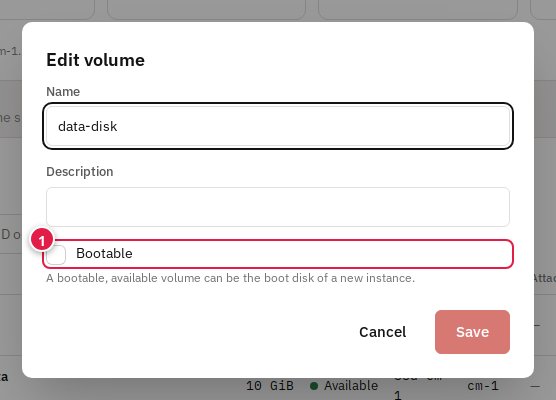
- The Bootable box: ticked, the volume can be a start-up disk.
What you should see
The volume's Bootable column says Yes.
A volume created from an image is already bootable: nothing to do.
2. Create an instance from the volume#
- In Compute › Instances, choose Create instance.
- In the Image step, open the Volumes tab and choose your volume.
- Go through the rest of the wizard as usual. See Create an instance.
What you should see
The instance starts on your volume's system. That volume becomes its system disk.
If something goes wrong
- The Volumes tab is empty.
- None of your volumes meets the conditions above: check that it is bootable, available (detached) and in the right location.