 Skyport
Manage an instance
Updated November 23, 2026
What it is for
Everyday actions on an instance: stop it, restart it, change its size, copy it, delete it.
Where to find the actions#
Every action is in the ⋮ menu at the end of the instance's row (or the More menu on the instance's page). Most are grouped by theme; point at a group to see its actions.
- Open console: the instance's screen, in the browser. See the console.
- Instance status: Start, Stop, Reboot, Lock, Suspend, Pause, Shelve, Rescue, and their opposites.
- Related resources: attach or detach a volume or a network interface, associate a floating IP, manage the security groups.
- Configuration update: Resize, Change password, Rebuild instance.
- Edit: the instance's name and description.
- Delete: permanent, see below.
- Modify instance tags: labels to sort and find your instances.
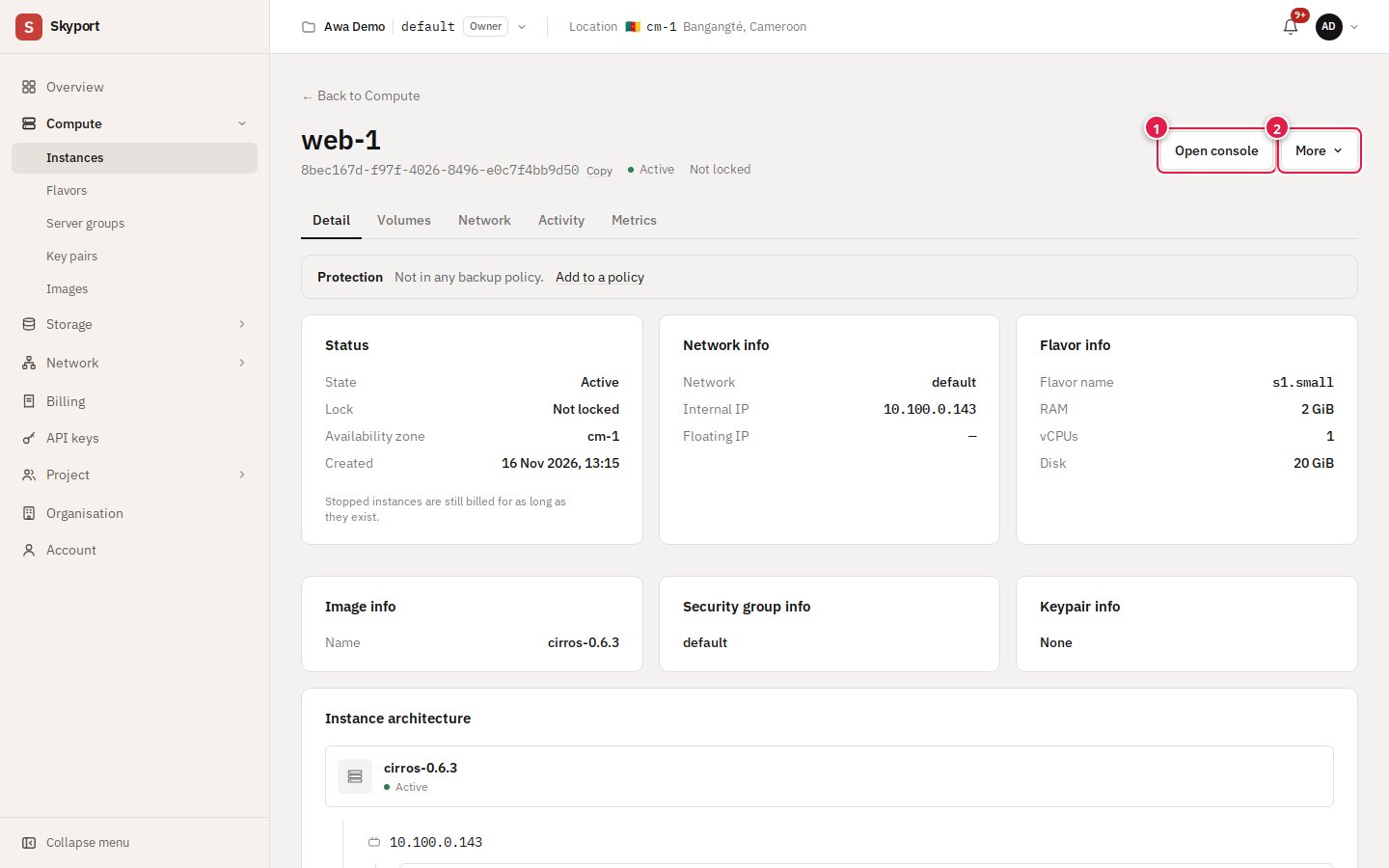
- Open console: the instance's screen in the browser. See the console.
- More: the same action menu as ⋮ in the list.
Stop and start#
- ⋮ menu › Instance status › Stop. The status changes to Stopped.
- To run it again: ⋮ menu › Instance status › Start.
A stopped instance is still billed: its resources stay reserved for it. To stop paying, delete it.
Change the size (resize)#
Before you start
- Another flavor available, bigger or smaller. See Flavors.
- ⋮ menu › Configuration update › Resize, then choose the new flavor.
- The instance restarts on its new size. Check that it works.
- ⋮ menu › Configuration update › Confirm resize to keep the new size, or Revert resize to go back to the old one.
Other actions#
- Reboot
- Turns the instance off and on again, like a computer's power button.
- Associate Floating IP, Attach volume, Manage security group
- Give it a public address, one more disk, or a different firewall.
- Lock
- Blocks every action until unlocked, to avoid a slip.
- Rescue
- Restarts the instance on a rescue system, to repair a system that no longer boots.
- Rebuild instance
- Reinstalls the instance from an image. Its system disk's content is erased.
- Shelve
- Puts the instance away and frees the machine it ran on; Unshelve runs it again.
Delete an instance#
- ⋮ menu › Delete.
- Confirm.
Deletion is permanent. The system disk goes with the instance. Data volumes stay (and stay billed), except those created with Delete with the instance. The floating IP stays reserved to your project: release it if you no longer need it.