 Skyport
Snapshots and backups
Updated November 23, 2026
What it is for
Two ways to copy a volume so you never lose your data. A snapshot is quick and lets you go back in time. A backup is a full copy, kept apart, that survives even if the volume is deleted.
Backups are not available yet. New accounts have a backup quota of zero, so Create backup is refused. Use snapshots, which are available within your quota. See Limits and quotas.
| Volume snapshot | Backup | |
|---|---|---|
| Speed | Almost instant | Longer: all the data is copied |
| If the volume is deleted | Deleted with it: the volume can only be deleted with its snapshots, which the Delete dialog does for you if you tick Delete the snapshots too | The backup stays |
| Use | Go back before an update | Keep a safe copy, over time |
Where to find these actions#
In Storage › Volumes, the volume's ⋮ menu › Data protection:
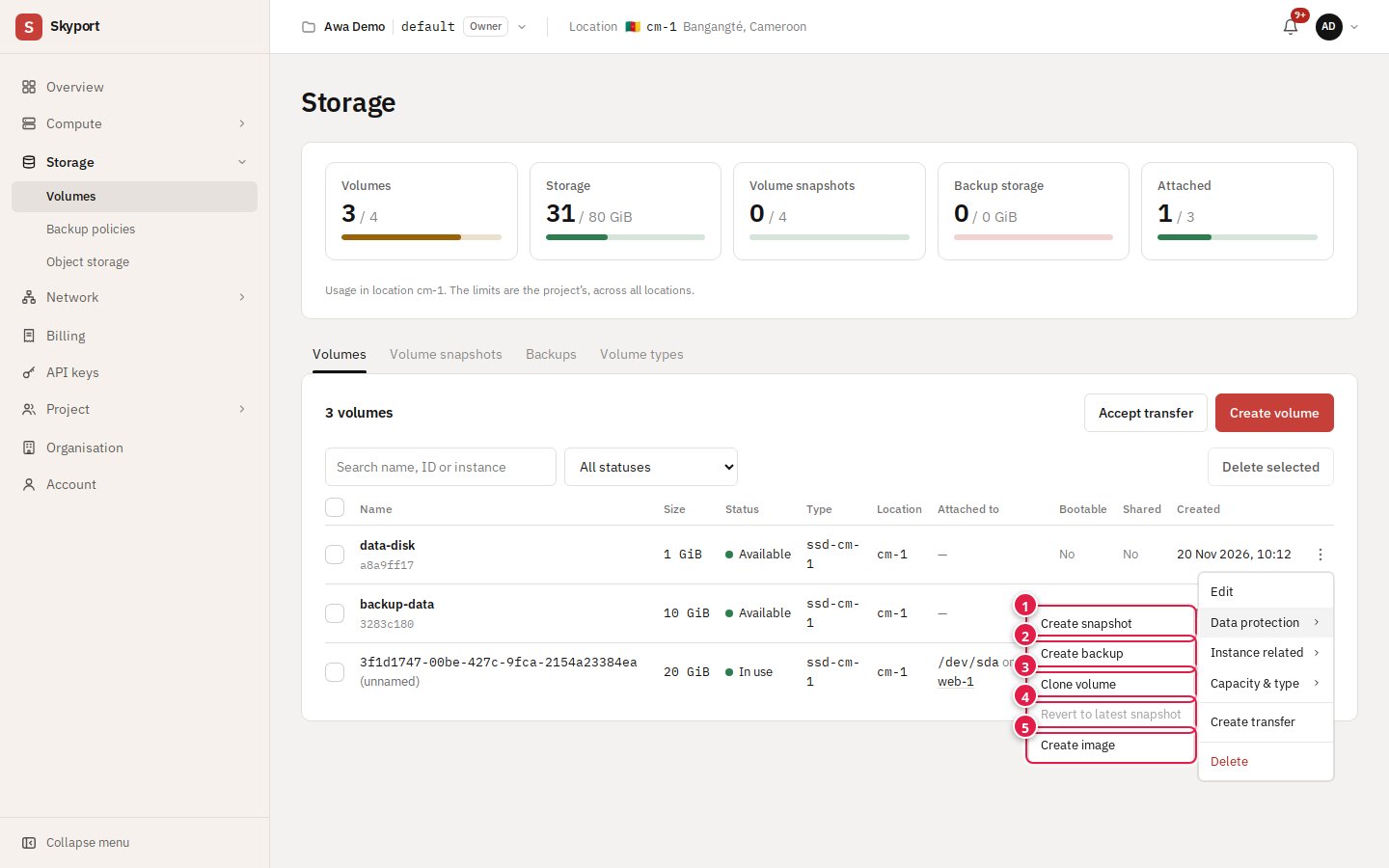
- Create snapshot: a quick copy, to go back in time.
- Create backup: a full copy, kept apart.
- Clone volume: a second, identical volume you can use right away.
- Revert to latest snapshot: puts the volume back in its latest snapshot's state.
- Create image: an image from the volume, to start other instances. See Images.
Take a volume snapshot#
- The volume's ⋮ menu › Data protection › Create snapshot.
- Fill in the window, then Create.
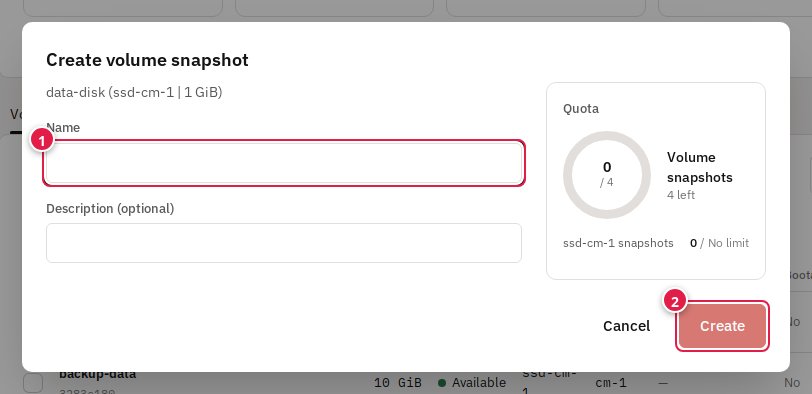
- Name: say when and why, for example
before-update. - Create: the snapshot is taken at once.
What you should see
The snapshot shows in the Volumes page's Volume snapshots tab.
For an attached volume, the snapshot holds only what is already written to disk. For a consistent copy, stop the application that writes (or the instance) during the snapshot.
Go back to a snapshot#
- The volume's ⋮ menu › Data protection › Revert to latest snapshot.
- Check the snapshot's name, then Revert.
The volume goes back to the snapshot's state: everything written since is lost.
Take a backup#
- The volume's ⋮ menu › Data protection › Create backup.
- Fill in the window, then Create backup.
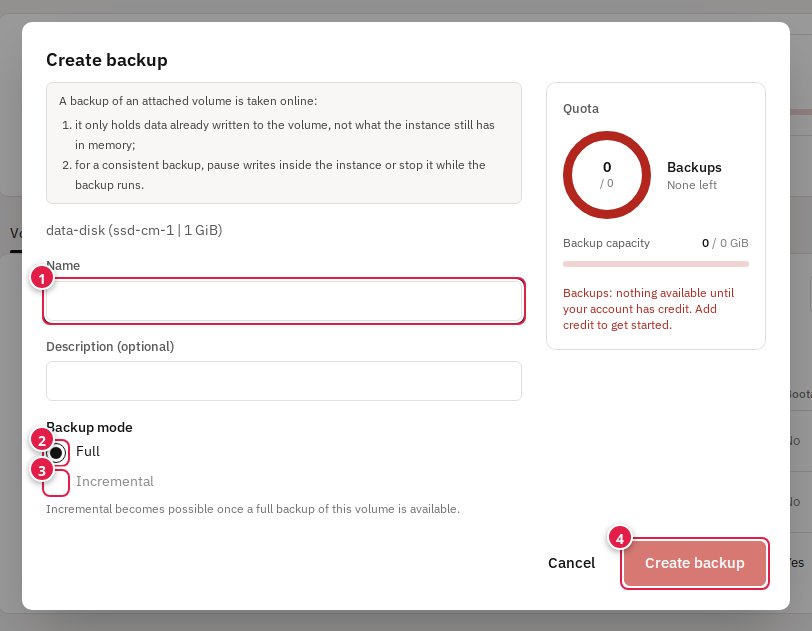
- The backup's Name, for example
data-october. - Full: copies the whole volume. Required the first time.
- Incremental: copies only what changed since the last backup, faster. Available once a full backup exists.
- Create backup.
What you should see
The backup shows in the Volumes page's Backups tab.
Restore a backup#
- In the Backups tab, the backup's ⋮ menu › Restore.
- Choose the volume to put back in the backup's state.
Want these copies automatically, every day? See Backup policies.