 Skyport
Server groups
Updated November 23, 2026
What it is for
Your instances run on hosts: the physical machines in our data centre. If two copies of your application are on the same host and that host fails, both stop. A server group says where to place your instances relative to each other.
An example#
You have two web servers, web-1 and web-2, that take over from each other. You put them in an Anti-affinity group: Skyport places them on two different hosts. If one host stops, the other server keeps answering.
Policies#
| Policy | Effect | When to use it |
|---|---|---|
| Anti-affinity | A different host per instance. Creation fails when no free host is left. | Several copies of the same service, which must not fail together. |
| Soft anti-affinity | Different hosts when possible; otherwise creation goes ahead anyway. | The same, when you would rather the instance is created regardless. |
| Affinity | Every instance on the same host. Creation fails when that host is full. | Instances that exchange a lot of data with each other. |
| Soft affinity | The same host when possible; otherwise creation goes ahead anyway. | The same, with no risk of failure. |
Create a group and place instances in it#
- In the menu, choose Compute › Server groups, then Create a group.
- Give it a name, for example
web-spread, choose the Policy, then Create the group. - Create your instances: in the wizard's Placement step, choose this group under Server group.
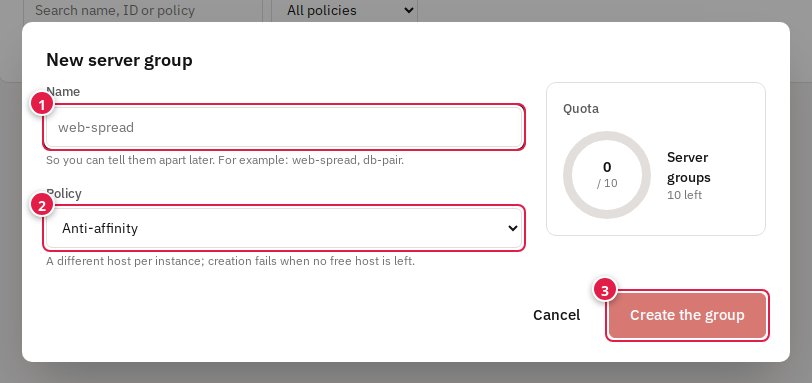
- Name: for example
web-spread. - Policy: see the table above.
- Create the group.
What you should see
The group's Members column counts your instances. Each one is placed according to the chosen policy.
An instance joins a group when it is created only: an existing instance cannot be added later. Deleting a group does not touch its instances: they keep running where they are, only the placement rule goes away.