 Skyport
API keys
Updated November 23, 2026
What it is for
An API key lets a program (a script, a deployment tool) act on a project without your password. You choose what it is allowed to do, and you can revoke it at any time.
Create a key#
- In the menu, choose API keys, then New key.
- Give it a Name that says what it is for, for example
nightly-backup. - Choose the Access (see the table below): give as few rights as possible.
- Choose an Expiry: 30 days, 90 days, 1 year, or no expiry.
- Choose Create, then copy the complete key (the application-credential id and the secret) or choose Download openrc.
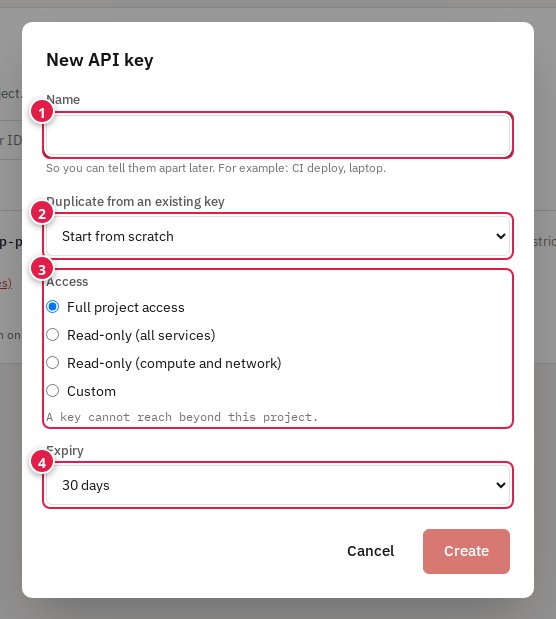
- Name: what the key is for, for example
nightly-backup. - Duplicate from an existing key: reuse another key's rights. Otherwise, Start from scratch.
- Access: what the key may do (see the table below).
- Expiry: 30 days, 90 days, 1 year or no expiry. After that, the key stops working.
The key — its application-credential id and its secret together — is shown only once. The secret alone is not enough to authenticate. If you lose it, create a new key and revoke the old one.
Access levels#
| Access | What the key can do |
|---|---|
| Full project access | Everything you can do in the project. |
| Read-only (all services) | Read: list and view. No creating, changing or deleting. |
| Read-only (compute and network) | Read instances and networks only. |
| Custom | For each service (Compute, Network, Storage, Images): None, Read or Write. |
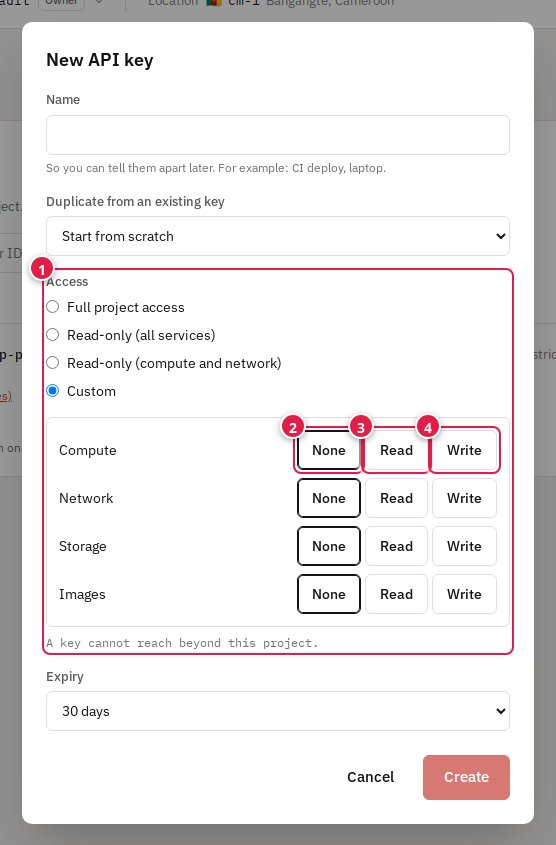
- Custom: choose a level for each of the four services (Compute, Network, Storage, Images).
- None: the key sees nothing of this service.
- Read: it can list and view, without changing anything.
- Write: it can also create, change and delete.
The platform enforces these levels: a read-only key that tries to delete something is refused. A key can never reach beyond its project. The View scope link under a key details its rules.
If your role on the project is Reader, you can only create a read-only key: the form offers the two read-only choices, and the key stays read-only for good — it cannot be widened even if your role changes later.
Using keys from your own computer (the openstack client, Terraform…) is not open yet: the API's addresses are not public yet. This page will be updated when it opens.
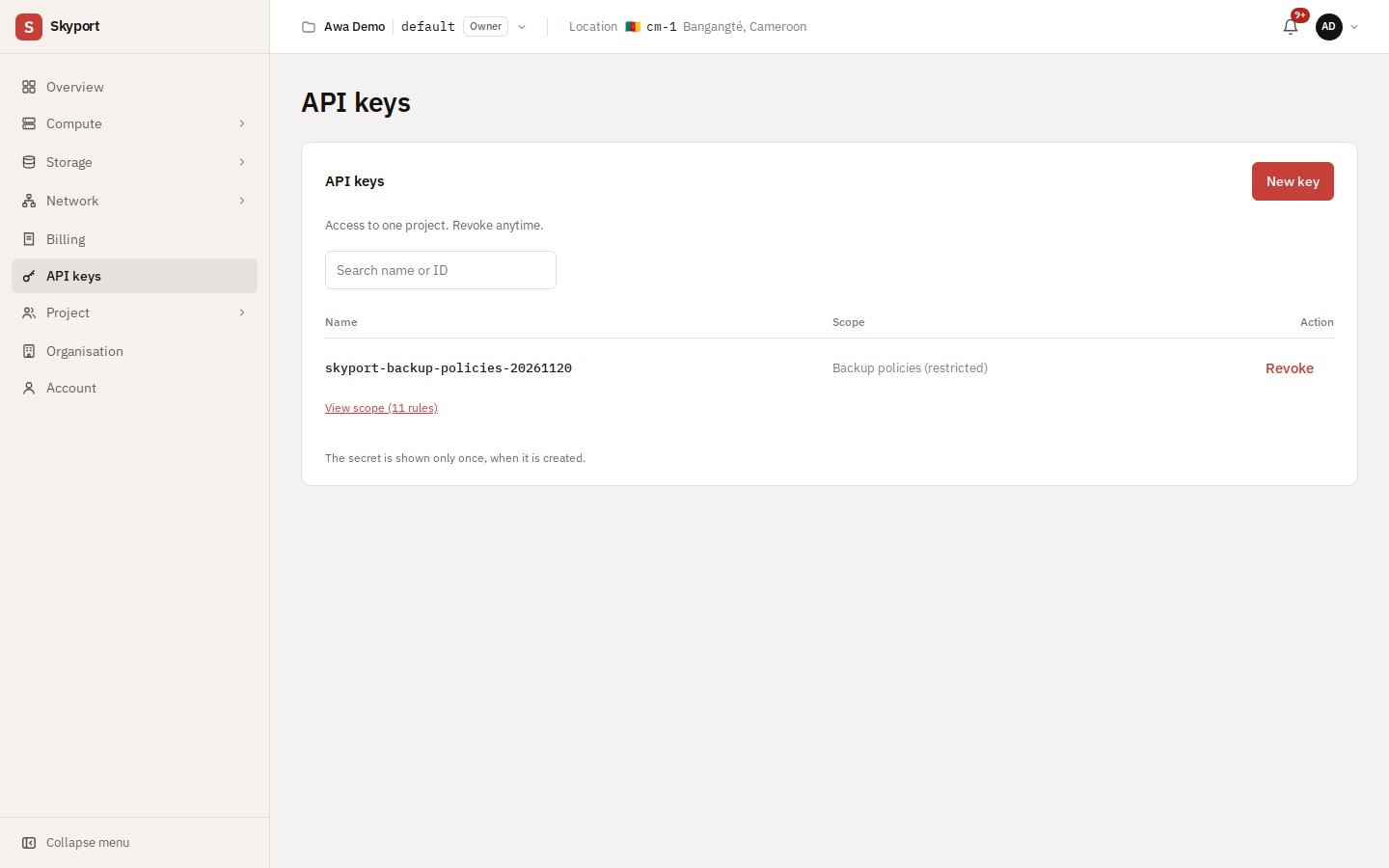
Revoke a key#
- On the key's row, choose Revoke.
- Confirm.
What you should see
Everything that used the key loses access at once. This is permanent.