 Skyport
Object storage
Updated November 23, 2026
What it is for
Object storage keeps files (“objects”) in buckets, without plugging them into an instance. It is S3-compatible: tools made for Amazon S3 (AWS CLI, rclone, restic) work with it. Ideal for backups, archives, a website's files.
1. Create a bucket#
- In the menu, choose Storage › Object storage, then Create bucket.
- Give it a name of 3 to 63 characters (lowercase, digits, dots, hyphens), unique in the location.
- If needed, turn on versioning (keeps old versions of each file) or object lock (prevents any deletion for a chosen period; can only be chosen at creation).
- Confirm.
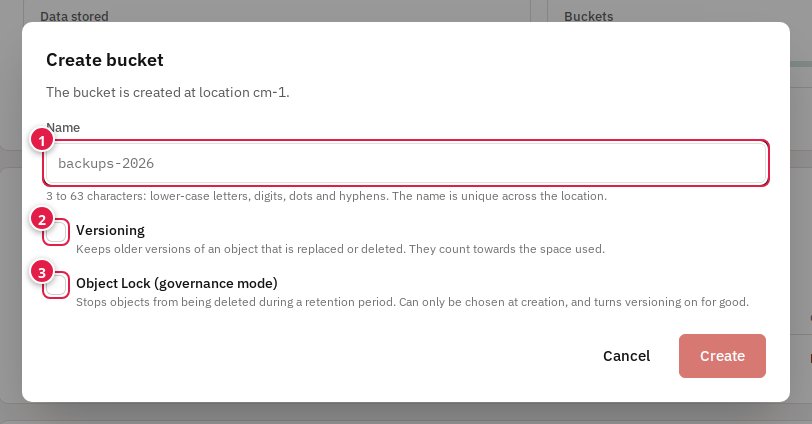
- Name: 3 to 63 characters (lowercase, digits, dots, hyphens).
- Versioning: keeps old versions of each file.
- Object Lock: prevents any deletion for a chosen period. Can only be chosen at creation.
2. Upload and download files#
- In Storage › Object storage, open the bucket: choose its name in the list.
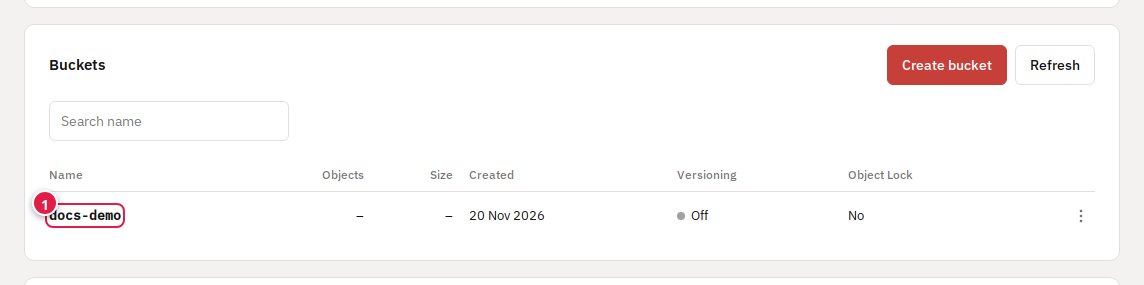
- The bucket's name: choose it to open the bucket.
- To upload, choose Upload files and pick files from your computer.
- To download, open the file's ⋮ menu, then Download.
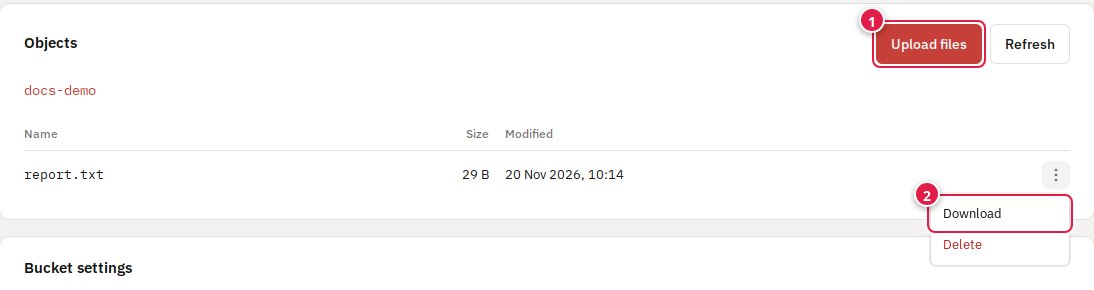
- Upload files: sends files from your computer to the bucket.
- Download: in the ⋮ menu of a file, saves it to your computer.
The S3 access section generates S3 keys for tools such as the AWS CLI, rclone or restic. Using them from your computer is not open yet: the S3 endpoint is not public yet. For now, manage your files from the console.
A bucket's data is stored at a single site, with no copy elsewhere. Keep another copy of anything that really matters.
In a bucket's settings, automatic expiry deletes objects after a number of days: handy for logs or temporary backups.