Skyport
Projects and teams
Updated November 23, 2026
What it is for
A project is a separate space, with its own instances, volumes, networks, quotas and members. Use several to keep, for example, production and testing apart, or one per customer. Your organisation gathers all your projects.
Create a project#
- In the top bar, open the project switcher, then choose Create a project.
- Give it a name (1 to 64 characters) and, if you like, a description.
- Choose Create project.
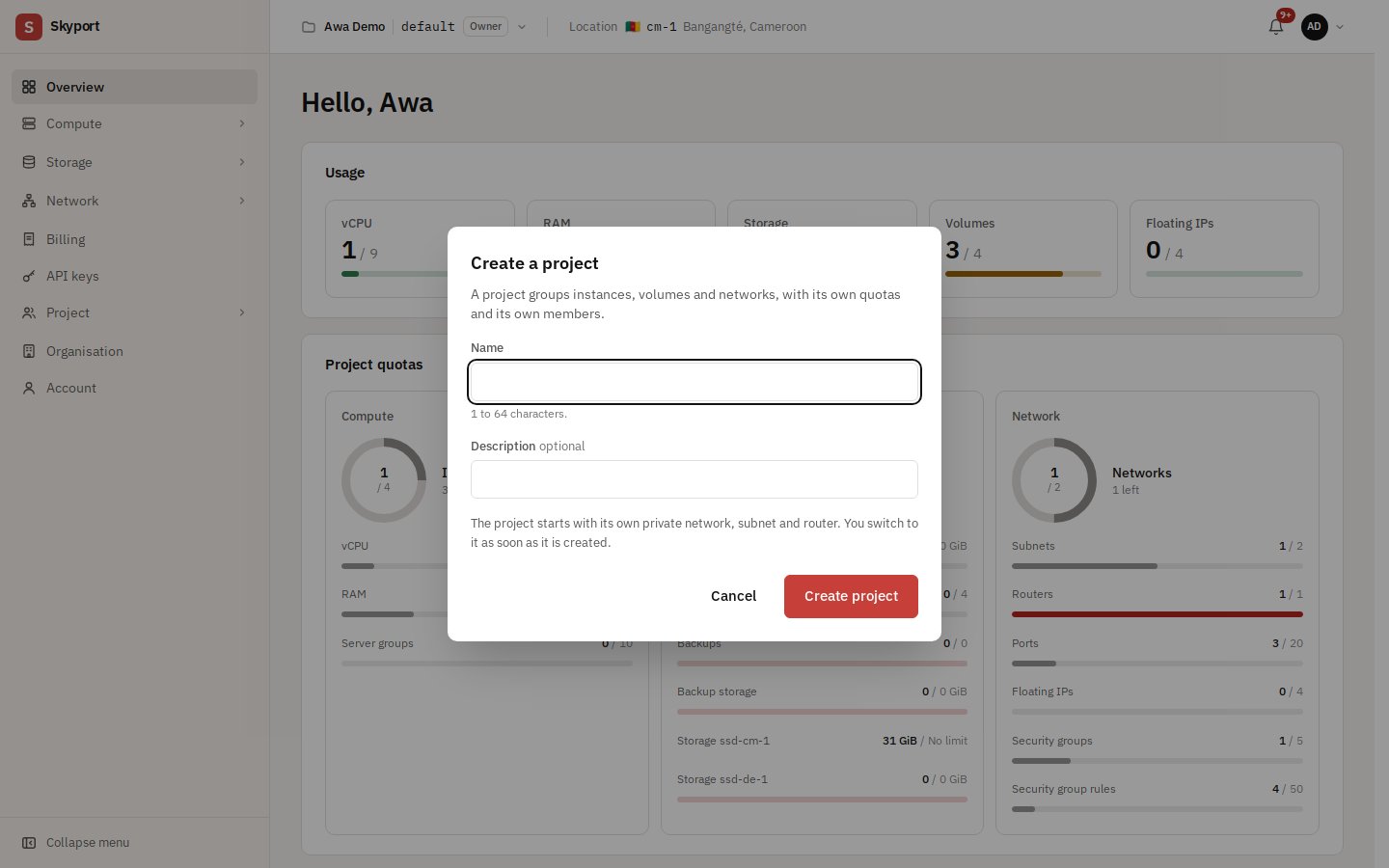
What you should see
You switch to the new project. It already has its network, subnet and router.
Invite a member#
- In the menu, choose Project › Members.
- Scroll down to Invite a person and fill in the form.
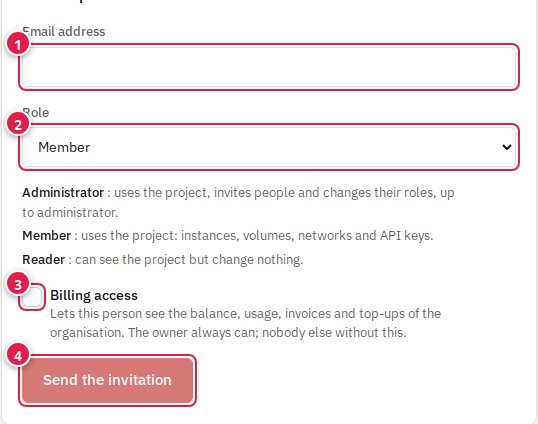
- The person's Email address.
- Role: Administrator, Member or Viewer (see the table below).
- Billing access: tick it if they should see the balance, usage and invoices.
- Send the invitation.
What you should see
The person receives an email, in one language, from SkyEngPro Cloud. Until they accept, the invitation stays under Pending invitations.
Someone who has no Skyport account yet can only create one if SkyEngPro has authorised their email address. An invitation to a project does not authorise it: the portal then says “Your account is not allowed to be created”.
| Role | What it allows |
|---|---|
| Owner | One per project. Can hand it to someone else with Transfer ownership. |
| Administrator | Uses the project, invites people and changes their roles, up to administrator. |
| Member | Uses the project: instances, volumes, networks and API keys. |
| Viewer | Sees the project but changes nothing. |
Transfer a project's ownership#
In Members, Transfer ownership offers the project to the owner or an administrator of the organisation who is a member of it. They have 7 days to accept; you then stay an administrator of the project.
Delete a project#
- Empty the project: delete its instances, volumes, floating IPs… The Project settings page lists what is left to remove.
- In Project settings, choose Delete the project and type its name to confirm.
The default project, created with your account, can be neither renamed nor deleted, and neither can an organisation's last project.
The organisation#
The Organisation page shows the organisation's owner and administrators, and the Activity log across projects. An organisation administrator creates projects, manages the members of every project and sees the balance.