Skyport
Security groups
Updated November 23, 2026
What it is for
A security group is your instances' firewall: a list of rules saying which traffic may come in and go out. Anything not allowed is blocked. By default, nothing can come in from the internet.
Allow SSH (port 22) from your address#
Before you start
- Your public IP address: search for “what is my IP address” in a search engine. For example
203.0.113.10.
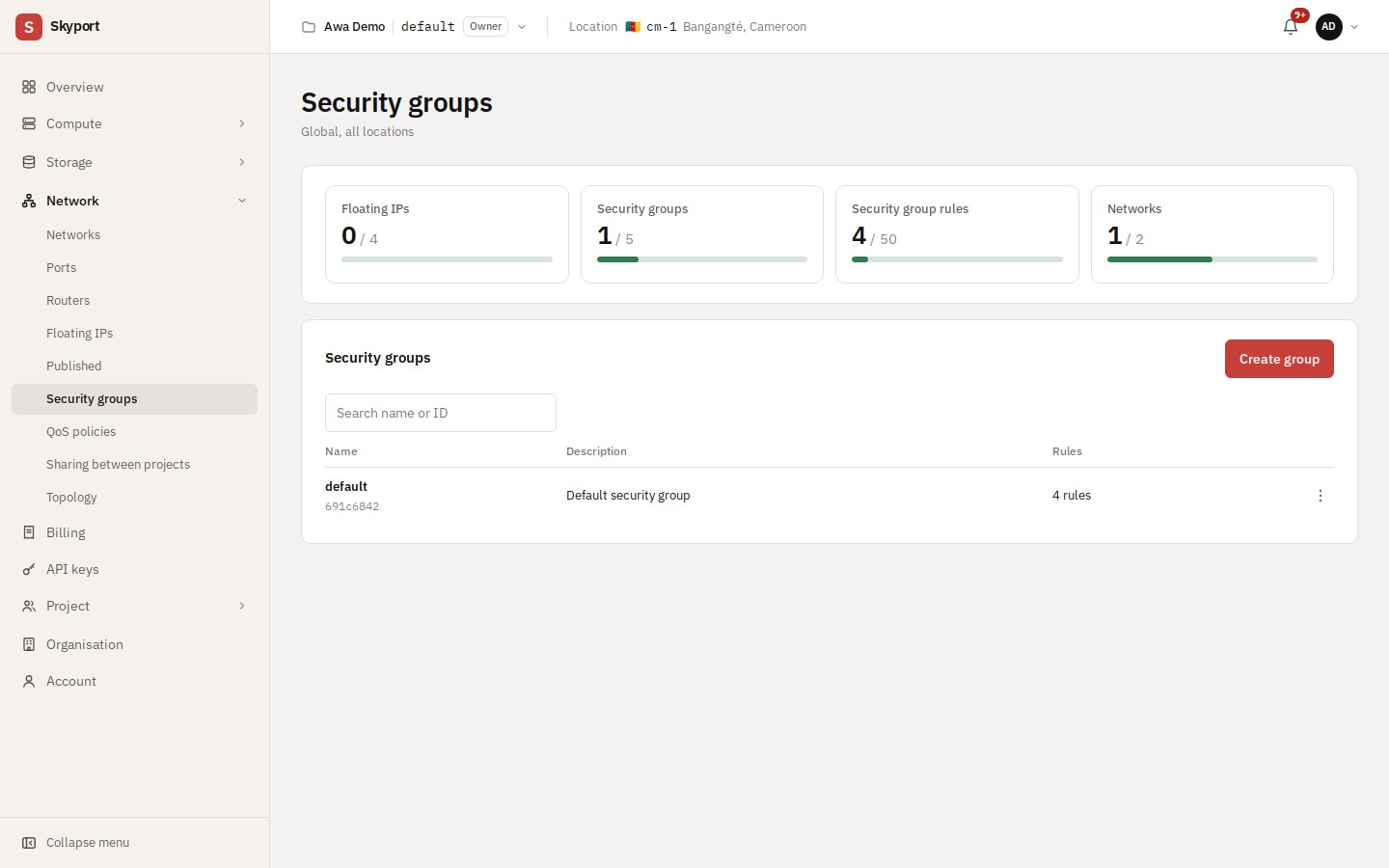
- In Network › Security groups, open the
defaultgroup. - Choose Add rule, then fill in the window as below.
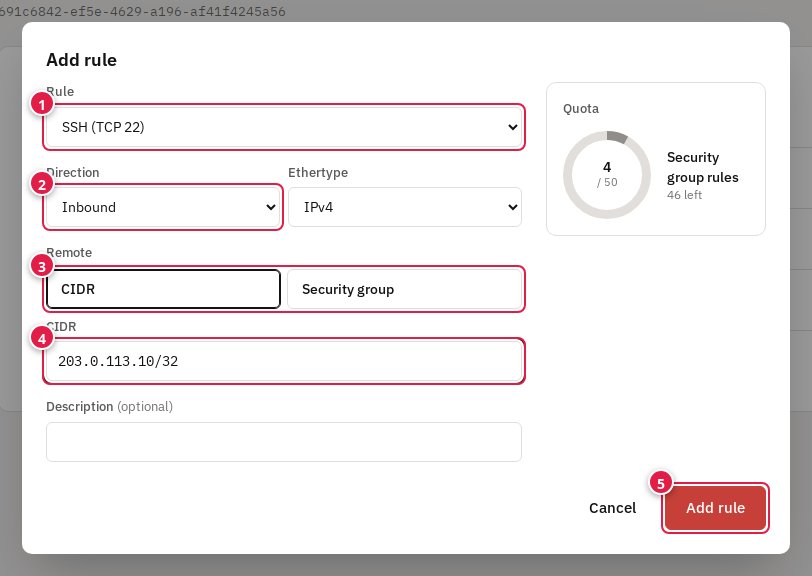
- Rule: SSH (TCP 22). The list also offers HTTP, HTTPS, RDP, databases, ping…
- Direction: Ingress, the traffic coming to the instance.
- Remote: CIDR, an address range (or another security group).
- CIDR: your address followed by
/32, for example203.0.113.10/32. That way, only you can try to connect. - Add.
What you should see
The rule shows in the list. It applies at once to every instance in the group.
Open a website (ports 80 and 443)#
Add two ingress rules, HTTP (TCP 80) and HTTPS (TCP 443), with the remote 0.0.0.0/0: the whole internet must be able to reach a public website.
Allow ping#
- Ping (ICMP echo request): allows ping.
- All ICMP: every ICMP message.
- Custom ICMP rule: an ICMP type and, if needed, an ICMP code (0 to 255).
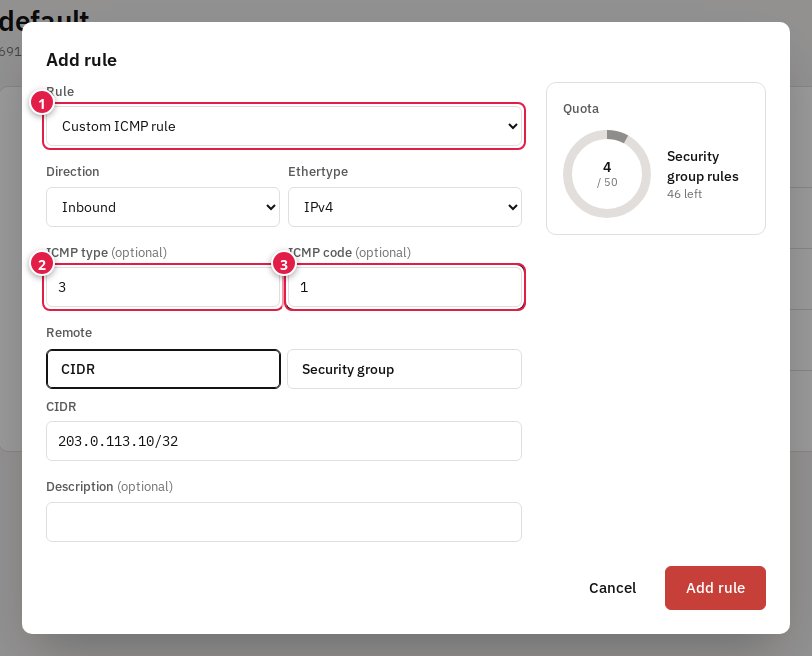
- Rule: Custom ICMP rule.
- ICMP type: here 3, “destination unreachable”.
- ICMP code (optional): here 1.
Apply a group to an instance#
When you create it, in the wizard's Security groups step; afterwards, the instance's ⋮ menu › Related resources › Manage security group.
Never open SSH (22) or a database (3306, 5432…) to 0.0.0.0/0: robots try to connect to them all the time. Limit the remote to your own addresses.