 Skyport
Images
Updated November 23, 2026
What it is for
An image is the starting content of an instance's disk: a ready-to-use operating system, or a copy of one of your instances or volumes.
Skyport does not import images from the internet or from your computer: an image from outside could carry malware. You start your instances from images checked by SkyEngPro, or from copies of your own instances and volumes.
The Images page#
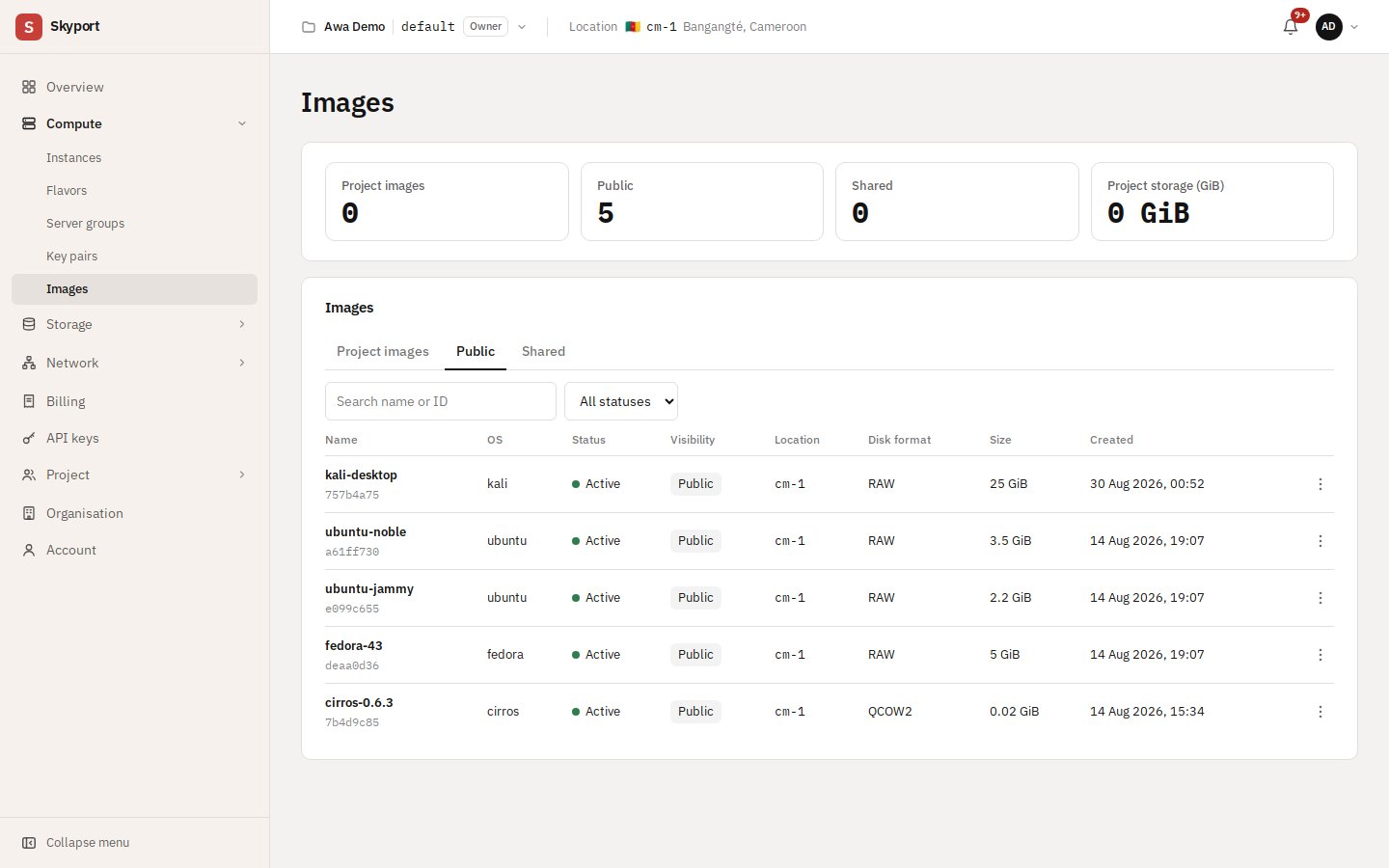
In Compute › Images, three tabs:
- Public: the systems SkyEngPro provides (Ubuntu, Debian, Rocky…), open to everyone.
- Project images: the ones you created from your volumes.
- Shared: the ones another project shared with yours.
Create an image from a volume#
- In Storage › Volumes, the volume's ⋮ menu › Data protection › Create image.
- Give a name and choose the disk format, then confirm.
What you should see
The image shows in the Project images tab. To keep a copy of an instance's data, use a volume: see Snapshots and backups.
Create a volume from an image#
- The image's ⋮ menu › Create volume.
- Choose a size at least as large as the image requires, then confirm.
What you should see
The volume holds a copy of the image and is bootable: it can be the system disk of a new instance. See Boot from a volume.
Share an image with another project#
- The image's ⋮ menu › Make shared.
- ⋮ menu › Manage access, then add the invited project's ID.
- The invited project accepts the share. Until then, it shows as pending.
- Edit
- The name, and the minimum disk (GiB) and RAM (MiB) the image requires.
- Delete
- Permanent. Instances already created from the image are not affected.